How to Delete Remote for Samsung
Published by: Oz ShabbatthRelease Date: August 19, 2024
Need to cancel your Remote for Samsung subscription or delete the app? This guide provides step-by-step instructions for iPhones, Android devices, PCs (Windows/Mac), and PayPal. Remember to cancel at least 24 hours before your trial ends to avoid charges.
Guide to Cancel and Delete Remote for Samsung
Table of Contents:
Remote for Samsung Unsubscribe Instructions
Unsubscribing from Remote for Samsung is easy. Follow these steps based on your device:
Canceling Remote for Samsung Subscription on iPhone or iPad:
- Open the Settings app.
- Tap your name at the top to access your Apple ID.
- Tap Subscriptions.
- Here, you'll see all your active subscriptions. Find Remote for Samsung and tap on it.
- Press Cancel Subscription.
Canceling Remote for Samsung Subscription on Android:
- Open the Google Play Store.
- Ensure you’re signed in to the correct Google Account.
- Tap the Menu icon, then Subscriptions.
- Select Remote for Samsung and tap Cancel Subscription.
Canceling Remote for Samsung Subscription on Paypal:
- Log into your PayPal account.
- Click the Settings icon.
- Navigate to Payments, then Manage Automatic Payments.
- Find Remote for Samsung and click Cancel.
Congratulations! Your Remote for Samsung subscription is canceled, but you can still use the service until the end of the billing cycle.
Potential Savings for Remote for Samsung
Knowing the cost of Remote for Samsung's in-app purchases helps you save money. Here’s a summary of the purchases available in version 14.90:
| In-App Purchase | Cost | Potential Savings (One-Time) | Potential Savings (Monthly) |
|---|---|---|---|
| No Ads | $1.99 | $1.99 | $24 |
Note: Canceling your subscription does not remove the app from your device.
How to Delete Remote for Samsung - Oz Shabbatth from Your iOS or Android
Delete Remote for Samsung from iPhone or iPad:
To delete Remote for Samsung from your iOS device, follow these steps:
- Locate the Remote for Samsung app on your home screen.
- Long press the app until options appear.
- Select Remove App and confirm.
Delete Remote for Samsung from Android:
- Find Remote for Samsung in your app drawer or home screen.
- Long press the app and drag it to Uninstall.
- Confirm to uninstall.
Note: Deleting the app does not stop payments.
How to Get a Refund
If you think you’ve been wrongfully billed or want a refund for Remote for Samsung, here’s what to do:
- Apple Support (for App Store purchases)
- Google Play Support (for Android purchases)
If you need help unsubscribing or further assistance, visit the Remote for Samsung forum. Our community is ready to help!
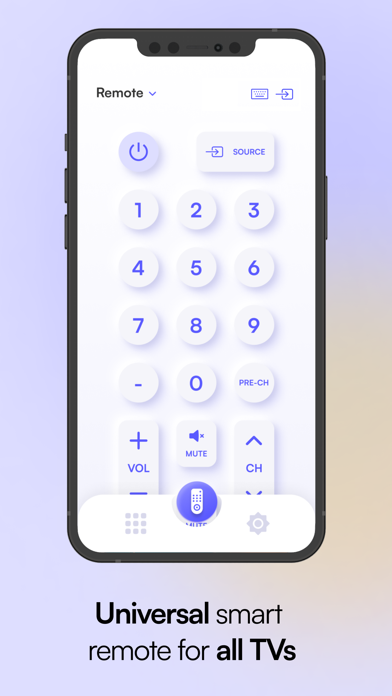
What is Remote for Samsung?
The best universal remote for samsung tv top 5 choices in 2023:
* Your last remote will be saved for quick and easy access next time you'll open the app
* FAST touch pad and keyboard for quick swipes
* AMAZING design with cool and easy interface
Have questions?
Please feel free to contact us on support@os-apps.com
***
DISCLAIMER