How to Delete Video Cacher
Published by: QuanBiaoMei TechnologyRelease Date: February 12, 2024
Need to cancel your Video Cacher subscription or delete the app? This guide provides step-by-step instructions for iPhones, Android devices, PCs (Windows/Mac), and PayPal. Remember to cancel at least 24 hours before your trial ends to avoid charges.
Guide to Cancel and Delete Video Cacher
Table of Contents:


Video Cacher Unsubscribe Instructions
Unsubscribing from Video Cacher is easy. Follow these steps based on your device:
Canceling Video Cacher Subscription on iPhone or iPad:
- Open the Settings app.
- Tap your name at the top to access your Apple ID.
- Tap Subscriptions.
- Here, you'll see all your active subscriptions. Find Video Cacher and tap on it.
- Press Cancel Subscription.
Canceling Video Cacher Subscription on Android:
- Open the Google Play Store.
- Ensure you’re signed in to the correct Google Account.
- Tap the Menu icon, then Subscriptions.
- Select Video Cacher and tap Cancel Subscription.
Canceling Video Cacher Subscription on Paypal:
- Log into your PayPal account.
- Click the Settings icon.
- Navigate to Payments, then Manage Automatic Payments.
- Find Video Cacher and click Cancel.
Congratulations! Your Video Cacher subscription is canceled, but you can still use the service until the end of the billing cycle.
How to Delete Video Cacher - QuanBiaoMei Technology from Your iOS or Android
Delete Video Cacher from iPhone or iPad:
To delete Video Cacher from your iOS device, follow these steps:
- Locate the Video Cacher app on your home screen.
- Long press the app until options appear.
- Select Remove App and confirm.
Delete Video Cacher from Android:
- Find Video Cacher in your app drawer or home screen.
- Long press the app and drag it to Uninstall.
- Confirm to uninstall.
Note: Deleting the app does not stop payments.
How to Get a Refund
If you think you’ve been wrongfully billed or want a refund for Video Cacher, here’s what to do:
- Apple Support (for App Store purchases)
- Google Play Support (for Android purchases)
If you need help unsubscribing or further assistance, visit the Video Cacher forum. Our community is ready to help!
What is Video Cacher?
{ regarde description pour trouver la video cacher }:
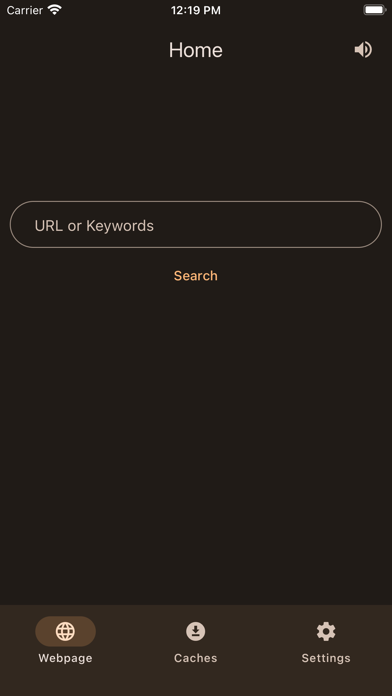
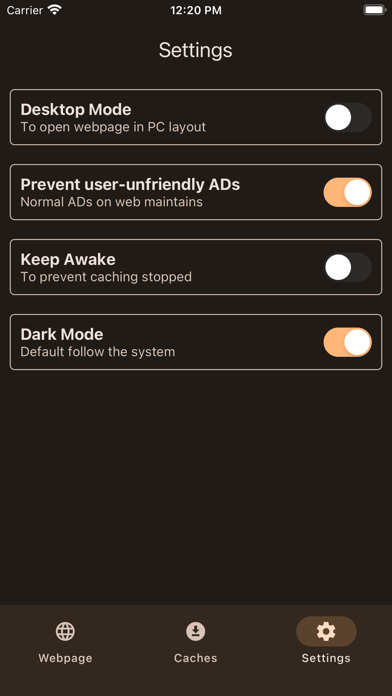
Feature 2: When the desktop mode is selected, you can open the computer version of the webpage
Feature 3: Block unfriendly advertisements, such as malicious pop-up windows that affect the experience
Feature 4: Mute the webpage, do not disturb listening to music while browsing the webpage video
Feature 5: Dark Mode
Feature 6: Cast screen to TV or Mac computer
Feature 7: Copy the text in the video (requires iOS 16.2 or above)
Feature 8: Mark the cached videos as favourites for easy viewing of good videos
Feature 9: Screen always-on mode to prevent interruption of background caching